Showing posts with label etoys. Show all posts

Tuesday, November 04, 2008

interviewed by Phil and Belinda

Recently, Phil and Belinda, two Flinders University education students visited my year 10 class, interacted with the students and after lesson interviewed me. It was for a project for a Digital Media course run by Trudy Sweeney who is also currently President of the Computers in Education Group of South Australia (CEGSA)

The questions were about Scratch, learning environments, etoys and the OLPC. The interview goes for about 30 minutes and is available as an mp3 on this page (also available as smaller question length segments)

Belinda and Phil's whole project about Squeak, Scratch and Etoys is available here

I was impressed by Belinda's ideas for using Scratch to teach Japanese and Phil's expert linux knowledge - and the fact that he went to an anti digital censorship campaign back in the Senator Harradine moral crusade days when he (Phil) was 15 yo! (unfortunately we now have new moral crusaders pushing the same barrow today)

Sunday, September 21, 2008

etoys car tutorial

My car spins out on a tight corner, its speed reduces from 10 to 6 at 54 seconds into the course

Scripts for course navigation

Scripts for the timer (requires setting clock ticks to 1 per second) and the reset / start script

For more detail download the car tutorial activities from the squeakland site. My students and I are having a lot of fun with these!

Notes on the new Etoys

I've been using Etoys with my year 10 class at school and they are very much enjoying the beginners car tutorials.

Kim Rose has announced the release of a new version (download release notes). Since Etoys is on the OLPC there have been some systematic improvements happening.

I have found the whole Etoys experience a bit confusing because it has been described as "an experiment that never died". It has always had an unfinished feel to it, from my perspective. When Scratch came along it seemed better organised, polished and easier to use out of the box so I jumped ship to Scratch for my visual programming requirements

However, Etoys is more powerful in some respects. I refer mainly here to the particle system, Kedama: A massively-parallel tile-scriptable particle system, programmed by Yoshiki Ohshima

At any rate, here are some preliminary notes I have made about the new version of Etoys:

PROBLEMS, QUESTIONS
  • Default saving goes to a non existent folder C:\My Pictures\My Squeak and so saving fails. Solve this problem by holding down the mouse button on the Keep icon and then an option to navigate to a desired folder becomes available. This is not explained on the balloon help of the Keep icon, although it is explained on the balloon help of the Find icon.
  • Help: When you load the paint tools the Help fades out. You can click the arrow to the next page but can't Jump to a different Help sequence for the Paint tools. You have to close the Paint tools then Jump to a different Help page and then reopen the Paint tools
  • Can't find a timer? The clock on a script has a tick rate, the default is 8 ticks per second, but how can I program that to display a timer?
  • Show code textually is a nice feature - would be even better if you could open the code window to reveal all the code at once - good for learning by copying and pasting to other media
  • How do you set the "preserve trash" preference mentioned in the trash can help balloon?
  • There doesn't appear to be a version number?

REALLY USEFUL (more detail in release notes)
  • Display Scaling
  • The Online Help System ("Quick Guides")
  • Right Click for Halo

VERY INTERESTING (more detail in release notes)
  • World Stethoscope
  • Event Theatre
  • A New Generation of the Particle System (aka "Kedama")
  • All Players Tool

Saturday, September 13, 2008

Squeakland site upgrade

http://www.squeakland.org/

This site has been upgraded and it is a quantum leap better than the old site (frustration). I'll be able to use it as a very useful resource in teaching etoys to my students, one of the xo activities.

I left this critical feedback on the squeakland list (archive):
  • the introductory images give a primary school feel but there is a section indicating it is appropriate for older ages: http://www.squeakland.org/showcase/byAge/ (first visual impressions can be very important)
  • also should there be something indicating a connection down the track between etoys and text based smalltalk - that there is a high ceiling as well as low entry (as well as high ceiling older age activities, eg. kedama based)
  • hard to do well but I'd like to see a page comparing etoys with other visual programming languages - or at least initially just indicating that they do exist, that etoys is part of an evolving genre and that that evolution is ongoing, not yet decided (scratch, star logo, game maker, turtle art, guido van robot etc.) - advocacy should be central but also combined with critical evaluation to some extent

Sunday, February 24, 2008

the importance of visual programming

the importance of visual programming by Detha Elza

Detha finds scratch the best place to start young kids, outlines some of its higher order limitations expertly, rejects game maker because its Windows only, finds eToys inpenetrable, mentions Bots and looks at how to make python programming more accessible. Also discusses Quartz Composer which I've never used. It's a great blog.

I like his succinct outline of scratch limitations:
It also has some pretty severe limitations: no user-defined blocks, no return values, no file interaction (so no high scores), no network interaction, no dynamic object creation, the program cannot draw on sprites (only on the background), no string variables or any real string handling. It is a great environment for learning to think creatively within its constraints, but my kids also bump up against its limits pretty quickly.

Friday, November 16, 2007

my VITTA presentations

I'm travelling to Melbourne soon to present at VITTA:

1) Alan Kay's educational vision. My notes, slides, some history and annotated references are here. Also, I have compiled some nice quotes from Alan here

2) Etoys squeak workshop. I'll be basing this mainly on making pong in etoys with maybe a kedama demo thrown in, if time.

Sunday, November 11, 2007

why learn etoys squeak?

Etoys is part of the OLPC - that may well be a catalyst to learn etoys if you are interested in what software the OLPC will be delivering to (perhaps) millions of children. It was for me.

But here I'm trying to (briefly) outline some of the broader arguments for learning etoys, as a piece of interesting software:

1) It represents an integration of some very good ideas that have taken some years to develop and have been expressed so far on these systems: logo, smalltalk, hypercard, starlogo. (What each of these systems offered could be spelt out in more detail)

2) It is an exploration of a visual-kinesthenic programming approach, which can be expressed with this slogan, "doing with images makes symbols" (from Kay, based on Bruner). In part this is constructionism but it is also pointing to a relationship between doing, visualising and abstraction that can work for young children.

3) It is a "live" system. The code can be written and variables manipulated directly while the system is still running in front of you. This makes powerful ideas such as variables and feedback far more accessible. It has transparent parallelism (aka late binding)

4) It represents an attempt to make an object <-- message model of programming accessible to children, a better underlying model to represent complexity than a procedural model. Some people have argued that this OOPs model cannot be taught to children but Etoys represents an attempt to show that it is possible.

5) In etoys the GUI consistently represents the underlying model. For example, you have drag and drop visual tiles which then spell out something like:
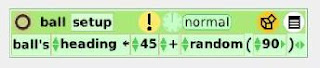
ball's heading <-- 45 + random(90)
This is like an English sentence:
<object> receives <message>
So, it is arguable that the meaning of the code will be accessible to young users who understand simple English

6) It contains a further evolution of the user interface called morphic, a range of halos that enable direct manipulation of objects (see screenshot)

7) There is an underlying philosophy of user as designer, not only of the immediate task but of the system itself. The latter part of this point ("of the system itself") may not be immediately apparent but the user is not being treated in conventional sense of "user friendly" but in the sense of a potential co-designer.


IMO it's fair to say that etoys is not particularly easy to learn. I think that the main point about visual programming systems is not about "easy" but about different channels of representation. Some learners become more engrossed in visual-kinesthenic systems. However, I'm pretty sure that Game Maker and Scratch are "easier" than etoys. Teaching etoys to experienced users requires a lot of instruction in the early stages because it is quite different to systems that these users are used to.

So my argument is not one of "user friendly" but that it is an innovation, an exposure to a different way of doing computing - a rich and fruitful pathway

Thursday, November 08, 2007

making pong in etoys

This is a long-ish blog with lots of screenshots because I wanted to explain in detail how to make a game in etoys for someone who is relatively new to using it.

It's best to use the OLPC etoys image of etoys squeak, which is now superior to the version on the squeakland site: install instructions here This tutorial matches the OLPC image version of etoys, it would be hard to follow all the detail of it if using the Squeakland version.

Saving and reloading: You can save your project by clicking on the open book icon at the top right. To reload use the world menu –> alt+shift+W

PART ONE: SETTING UP
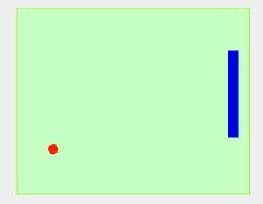
Grab a Playfield out Supplies (the box at the top centre of the screen)

Make your own bat and ball, name them "bat" and "ball", and put them into the Playfield, the simplest way is to drag them in directly

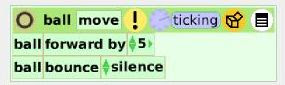
Make a script to control the ball's behaviour. Name it "move". The ball's motion category contains the commands you need: forward and bounce
The default heading is zero (0), which is north, which we don't want. Write a setup script which creates a better initial heading, with some random variation:
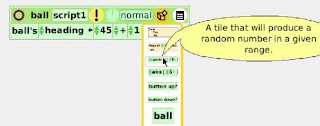
From the ball's Viewer motion category drag out a detailed watcher for the heading, so we can directly observe its changing values:
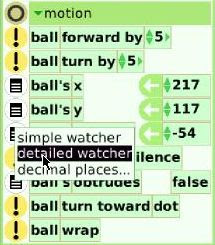
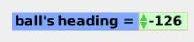
Make some observations for yourself about the x and y co-ordinates and the heading values of the ball as it moves around the Playfield, so that you become aware of how the co-ordinate system works in etoys

PART TWO: BALL HITS BAT

Drag a Test/Yes/No pane out of the ball's move script supplies palette
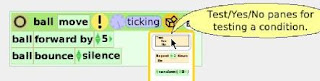
and add it to the move script
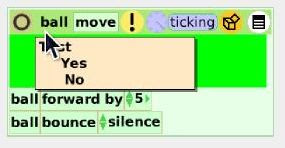
There are lots of other Viewer categories! By clicking on any Viewer category heading you get a drop down list revealing the other possibilities. Do this and select the test category:
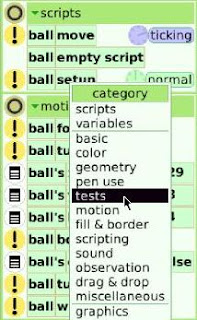
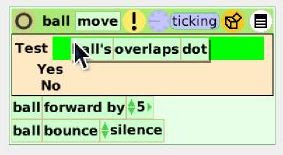
What test do we want? Answer: ball overlaps bat. We get there by initially dragging the ball's overlap dot test to the Test section of the move script:
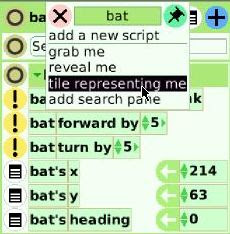
Now open the bat Viewer and ask it for a "tile representing me"
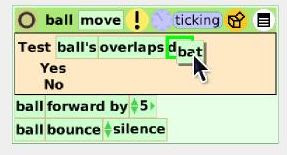
and replace the dot tile in the move script with the bat tile:
We have to do some maths now:
With the way etoys measures headings (your HW in part one) what should the new heading be after bouncing off the bat?

Go back to the ball's Viewer, drag out the heading by the assignment arrow and add it to the Yes line in the move script
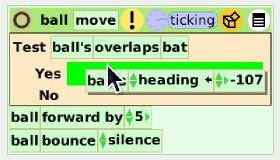
Have you done your maths yet?

For a true bounce using the etoys heading syntax the after bounce heading will be the negative of the before bounce heading. To represent the minus grab a function tile from the move script palette
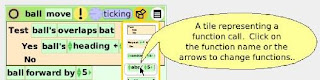
and replace the number on the end of the ball's heading with the function tile
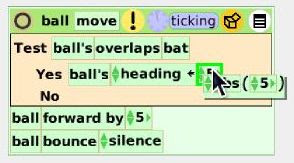
Next, click on the function tile and choose negativeOf from the list of functions:
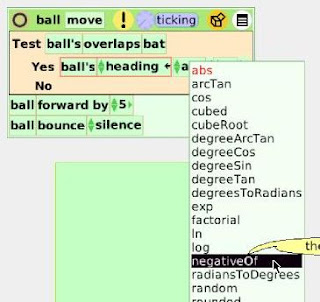
Now replace the number in brackets after the function with the ball's heading
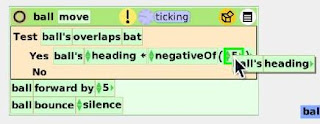
Test it out. The ball should bounce off the bat now with a true bounce!

PART THREE: CONTROLLING THE BAT

We can use either key strokes or the specialised etoys slider (Supplies > Object Catalog) to control the bat. I'll use key strokes for this tutorial.

Open the world Viewer by middle clicking on the world to get the halos and then clicking on the cyan "eye". The world viewer has an input category which tracks the last key stroke. Press the up and down arrow keys and you will see the Viewer keeping track

Drag out a new script from the world viewer (only the world viewer has a keystroke option) and name it something like "batControl". From the palette tear off a Test/Yes/No pane and add it to the script.

Drag world's last keystroke (not by the assignment arrow) to the Test condition of the bat control script
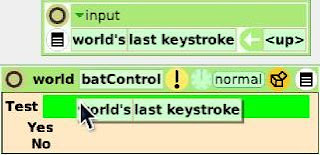
If necessary change the key input to <up>
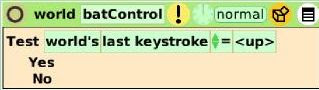
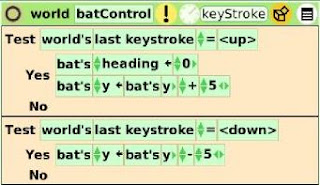
Drag out the bat Viewer and open the motion category. When we press the <up> arrow we want the heading to be zero (drag by assignment arrow) and the bat to move up the y axis, like this:
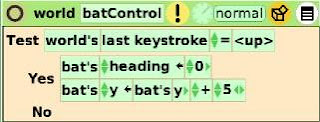
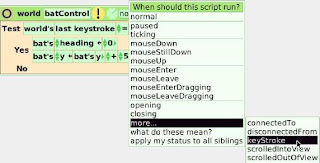
It is possible to program a keypress (thanks to Tony Forster for explaining how). Click on the button displaying "normal" next to the ticker, then choose more... from the drop down menu and then keyStroke

Now add your <down> arrow keyboard control

PART FOUR: SCORING

We will do this part by registering a score increase when the ball touches a boundary object

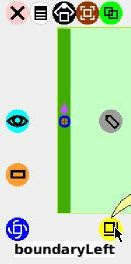
Make a boundary object, name it ("boundaryLeft"), drag it into the Playfield and resize it with the yellow halo so it fits all the way along the boundary
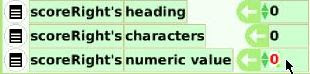
We will record the score in a "Text" because a Text contains the code to increment a numeric value. Drag a Text out of Supplies and position it on the right hand side of the Playfield. I named my Text "scoreRight" and set its numeric value to zero (basic category)
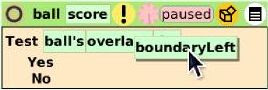
Create a new script, named ball score, add a Test/Yes/No pane and make the Test condition:
ball's overlaps boundaryLeft. First drag ball's overlaps dot from the ball's Test category. Then ask boundaryLeft to hand you a "tile representing me" and replace the dot with that tile.
When the ball hits the boundary we want the score to go up by one, the ball to be returned to the centre of the Playfield and move off in a random direction, like so:
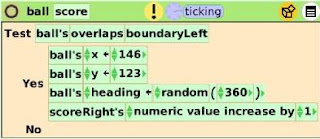
Run the script with the ball moving, to check that it is working.

PART FIVE: FINISHING TOUCHES

It is now mainly a matter of making a another bat, score and boundary for the other side of the Playfield and then our first version of pong will be completed. I reduced the bat size and speeded up the ball to make it more interesting. I also added in some more randomisation.
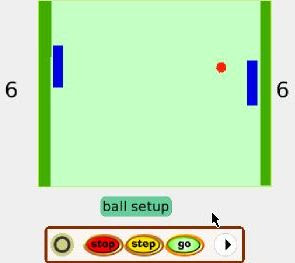
Version one available here (you will need to OLPC etoys image to play it)

Wednesday, November 07, 2007

making a 15 Puzzle grid

This program is to partially automate the making of 15 Puzzle

Get a Playfield from Supplies

Get another Playfield from Supplies, open its Viewer and name it cell

Get a Text from Supplies and open its Viewer
Text's numericValue, change 0.00 to 0 (no decimals)
Pick up the Text (black halo) and drop it into the cell
Reduce the size of the cell (yellow halo), we will have to fit 16 cells into the larger Playfield

Make sure the Text is inside the cell - when you move the cell the text should move with it. Also check by looking in the cell connections category, you will see the text is registered there.

Open the cell viewing menu (red halo)
Check round corners, essential for this project
Change the colour to establish contrast from the colour of the large Playfield
fill style > change colour
border style > border colour

Open the cell viewer
Add a variable, call it counter
change the value type > Player
Drag out cell counter by the assignment handle, it will form a script which reads:
cell's counter <-- dot Open the Text Viewer Get the Text to hand you a "tile representing me" (from menu at top) Replace the dot with the Text tile
Run this script briefly so the cell's counter Player type converts to a Text type. The icon on the assignment arrow will change from a dot to a text.

Now we will write a script which automatically makes new cells, increments their number and puts them into the large Playfield

Open the Playfield Viewer and drag out a script
Open the cell Viewer and drag out the cell's counter variable by the assignment handle and add it to the Playfield script. It should read:
cell's counter <-- Text To make a new cell: Go to cell > miscellaneous category, drag out cell's copy and replace Text with it

Running this will create a new copy of the cell on top of the original cell. So now we want to automatically move the new copy into the larger Playfield.
Switch on auto-line-layout in the larger Playfield, for automatic alignment:
Menu (red halo) > playfield options > check auto-line-layout
Run the script to see if new cells are populating the Playfield
For 15 Puzzle to work (later) the cells have to be touching horizontally and vertically but not diagonally. To achieve this use:
Menu (red halo) > layout > table layout > change cell inset (tricky since there are so many settings available)
To tidy up afterwards use Playfield > collections > removeAll

Now it's time to increment the numbers on the cells
Open the Text Viewer and drag in Text's numericValue by the assignment handle
Open the cell Viewer, drag out cell's counter and replace Text's with it (see diagram)
Alter this line of code to increase the numericValue by one

I think because cell counter is playing a dual role, first making a Player copy and then being a text to increment the number then it's essential to add in
cell's counter <-- Text as the third line of the script. Here's how it looks now:
Run the procedure to create a 15 Puzzle grid!

To shuffle the cells use
Playfield > collections > shuffleContents

After thought: It would look better keeping the border a different colour

Project available: 15 Puzzle Auto

visually manipulating collections in etoys' Playfields


Markus Gaelli has a 15 Puzzle etoys demo program at his emergent site (excellent site for etoys projects)

Before getting onto coding the puzzle I became quite absorbed about the potential of etoy Playfields. The puzzle consists of 16 little Playfields (which in turn are containers for their own "text" numbers) inside a big Playfield.

What I see in Playfields is the opportunity to manipulate collections visually which I haven't seen in any other program. eg. Game Maker doesn't represent for loops visually and it is hard to teach them to students, in my experience.

I was also intrigued by the notion that Smalltalk adopted "collection based programming as a central tenet" and "that modern functional programming languages such as ML and Haskell have followed this lead". The whole approach is not based on looping constructs but on creating a new collection containing the desired elements (Squeak by Example, p. 195). I'm unsure about how much of this approach can be demonstrated in etoys - but it does suggest a different sort of way of teaching collection manipulation that may be more accessible to many learners

This post is just getting started with how to work with collections in Playfields.

The screenshot above is a collection of Playfields (which contain text numbers) contained within a larger Playfield. The resultant collections category in the larger Playfield's Viewer looks like this:


This opens the door to visually manipulate quite a few things:

count: number of objects that the Playfield contains
cursor: the currently selected object, in this case 9 (the cursor can be visible or invisible)
firstElement: I have auto-line-layout switched on so the objects are layed out neatly with the first object in the top left hand corner
include at cursor | dot: This adds a new object to the Playfield at the cursor. You need to replace the default dot with the object you want to add.
include: dot: Adds a new object at the end of the other objects (replace dot with the object you want to add)
numberAtCursor: ?? not sure what this is for
playerAtCursor: The object currently at the cursor
removeAll: remove all objects from the Playfield
shuffleContents: shuffle the objects in the Playfield
stringContents: displays a linear text representation of the Playfield contents

I've written a program which automatically populates a Playfield with the elements of the 15 Puzzle. I'll blog about that separately.

turtle graphics in etoys: possible but not elegant


You can create a parameter (but only one per procedure) and you can't rename them! So write a first procedure to setup your parameter:

Then create a number variable and create a second procedure to increment your parameter value, as shown. You initialise your number values from the object's Viewer.

The etoys version from the squeakland site doesn't have a repeat command. But Pierre-André Dreyfuss pointed out that you can write your own. Also the repeat command has been added to the OLPC etoys version

Project available: http://www.users.on.net/%7Ebillkerr/etoy/turtleGraphics.001.pr

how to make a "text" counter in etoys

I need a counter for a larger project. I needed help to do it (thanks Paul) so thought I should pass on the technique.

Goal: By clicking on a shape a counter increments

This is for making a large counter, which displays in a specialised text player. Another (easier) way would involve using a detailed watcher but that only has a small display. This method involves learning something about setting variables and using Text so it is has broader application.

Drag a "Text" out of the Supplies flap
Have a look in the Viewer, it has a Text's numeric value tile in the basic category. Click in the value and type a number and that number will appear where the "Text" is

Make a new shape for clicking on. I made a rectangle and coloured it green. I kept the name at the default, "Sketch"

Add a variable to Sketch, I called mine "counter", then change value type to Player. Note that Text types are not available.

So you now have to pass the Sketch counter player variable a text tile. This is how you make a text type.

Make a Sketch script. Then drag Sketch counter by the assignment arrow to the script. The line will read:
Sketch's counter <-- dot Then open the Text viewer. Get it to hand you a "tile representing me" from the menu at the top. Then replace the 'dot' tile with this new 'Text' tile (see diagram)
So, now we have made a counter variable which is of text type!

Make a new Sketch script. I called this script "increment"
Reopen the Text viewer and drag Text's numeric value to the new script by the assignment handle. It will read:
Text's numericValue <-- 0 (just click on the 0.00 and replace it with 0 and the number of decimal places will adjust automatically) Reopen the Sketch Viewer and drag Sketch's counter (not by the assignment arrow) to replace Text's with Sketch's counter (see diagram)
Now modify the code so it reads: Sketch's counter numericValue increase by 1 (see diagram)

You can modify the Events which trigger the code by clicking on the "normal" button:

I changed mine to mouseDown, so I can increment the number by clicking on the green shape which is named Sketch.

Project available: http://www.users.on.net/%7Ebillkerr/etoy/counterByOne.005.pr